
Introduction
The following guide explains in detail how to access your Nabu Pro platform, as well as how to set your preferred language for the platform. Watch the video or read the guide below :
Accessing your Nabu Pro Dashboard
If this is your first login, you should have received an email from noreply@nabupro.com with instructions to activate your account. Please follow the steps in that email to verify your account and set your password. Be sure to check your junk or spam folder if you do not see it in your inbox. Your new password will require at least 8 characters, including one upper case letter, one number, and one special character.
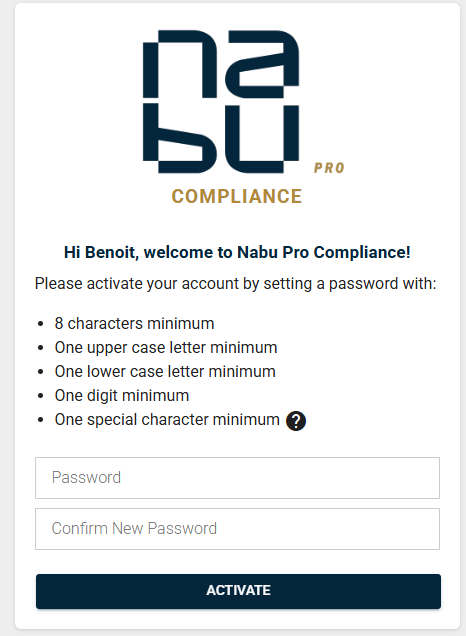
Once your account has been activated, you can access your dashboard by opening your web browser and visiting nabupro.com From the top right corner of the homepage, click “Login” to reach the sign-in page. Alternatively, you can go directly to the Nabu Pro My Portal at portal.nabu.app. We strongly recommend bookmarking this link to make future access quicker and more convenient.
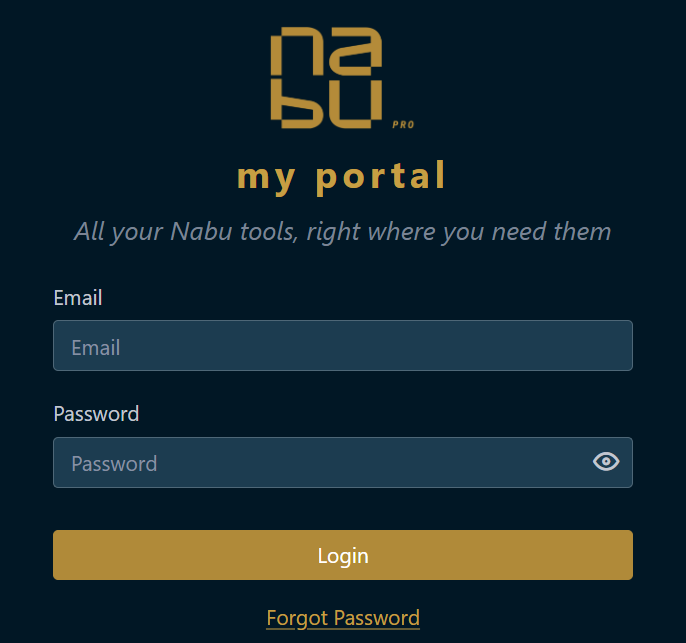
If you are unable to log in because you did not receive the activation email or have forgotten your password, simply click on “Forgot Password” on the login page. Enter your email address and click “Send.” You will then receive an email with instructions to create a new password for your account.
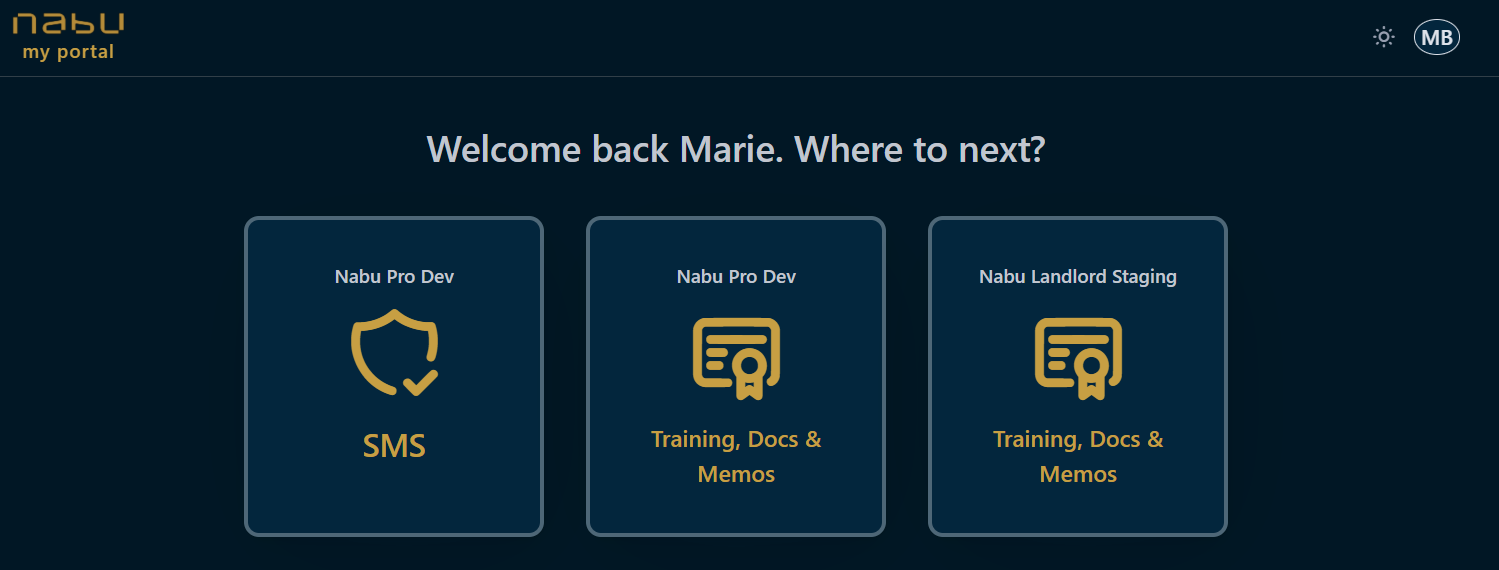
Once you log in to your portal, you will be able to choose which product from the Nabu ecosystem you want to access, either Nabu Pro Compliance or Nabu Pro SMS. If you have access to only one of these products, you will see only that option displayed.
Setting your preferred language
Before you get started, you may want to change the language of your application if your account settings are not set according to your personal preferences.
To do so, click on your initials in the upper-right corner of the screen and select “Profile”. In the profile section, click “Edit”, then choose your preferred language from the available options. Once selected, click “Save” to apply your changes.
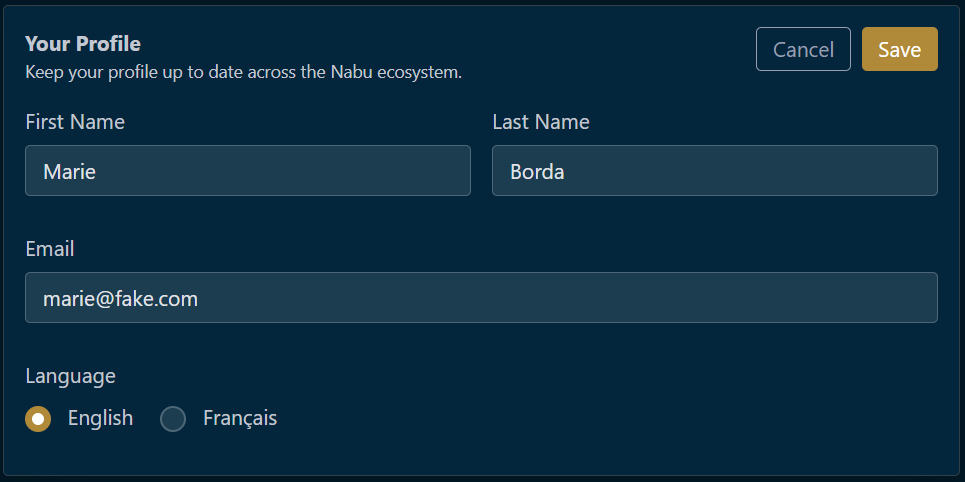
You can now return to your dashboard and continue using the platform in your preferred language.
Want to learn more about how to use the Nabu Pro platform? You can get access to our complete Nabu Pro User Tutorial trainings, available directly within our platform. Get a free trial for your company now!